How to Reset Mac to Factory Settings
This guide walks through exactly how to reset and restore a Mac to original factory settings. Resetting a Mac to factory settings involves erasing the Mac hard drive and then reinstalling MacOS or Mac OS X system software onto the computer. The result is that all personal data will be removed from the computer completely and a fresh reset original version of Mac OS system software will be installed on the computer, just like the computer was new and how it originated from the factory again (thus why this is called a factory reset).
This reset and restore method is the same with every Mac computer out there, including iMac, MacBook Pro, MacBook, MacBook Air, Mac Mini, and Mac Pro, as long as the Mac is running a somewhat modern version of Mac OS system software with recovery mode support. You can also perform the exact same actions as described here from a boot USB disk if you have one.
WARNING: This will completely erase everything on the Mac, no personal files will remain, no apps, nothing, the Mac will be completely formatted and wiped clear, and the only thing left will be the factory reset stock version of MacOS or Mac OS X system software, just as if the Mac was new.
Be sure you backup any and all personal files and data that you care about before starting this process, if you do not back up your personal data and files they will be permanently lost as this process erases the Mac and resets the computer to factory default settings. Do not skip backups of your stuff!
How to Factory Reset Mac OS X to Original Default Factory Settings
If you want to completely erase the Mac and get a factory reset Mac OS X version that is blank and back to default settings as if the computer was brand new, this is the process to achieve that. This will reset Mac to the factory default version of Mac OS X on the computer, everything else will be removed in the process.- Reboot the Mac and right after the boot chime sound, hold down the COMMAND + R keys together to boot into Recovery Mode
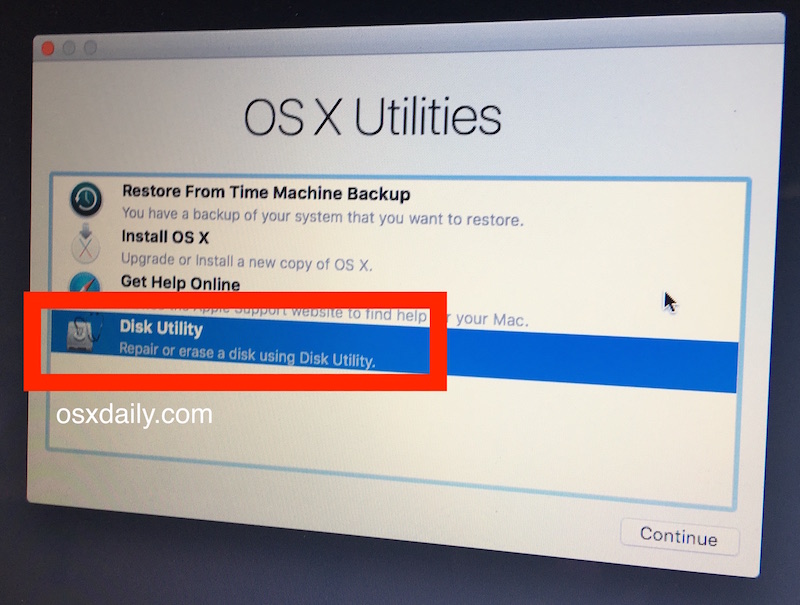
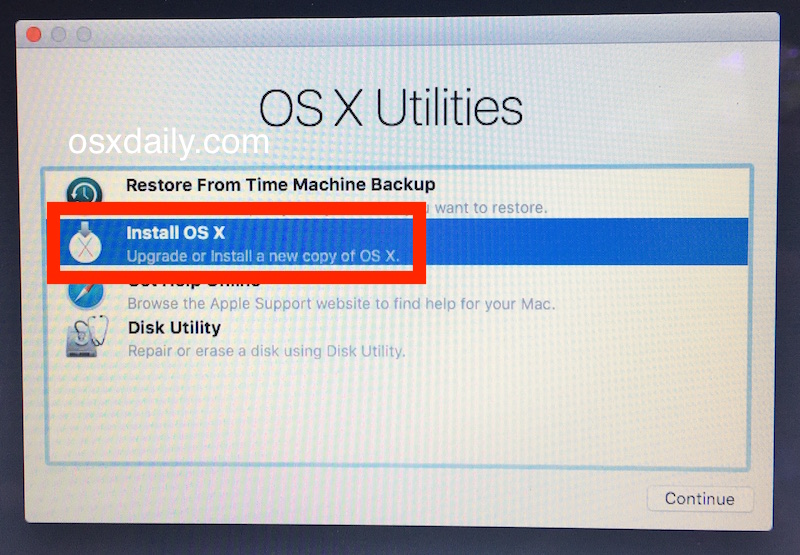
- Once in Recovery Mode and at the “macOS Utilities” (or “OS X Utilities”) screen, select “Disk Utility”
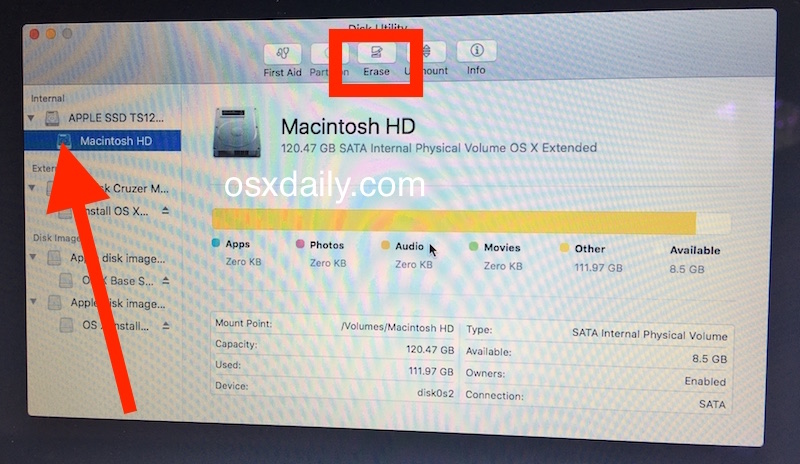
- Choose “Macintosh HD” (or what the Mac drive is named), then select the “Erase” button
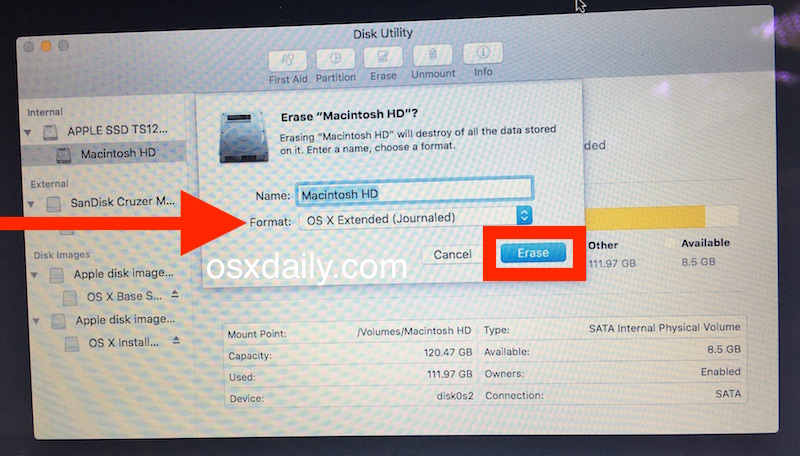
- Choose a name for the erased drive, like ‘Macintosh HD’ and then next to “Format” pull down the drop down menu to select “OS X Extended (Journaled)”, then click on “Erase” when you are ready to completely wipe the Mac – ERASING MEANS EVERYTHING WILL BE REMOVED
- Once the drive has finished erasing everything, quit out of Disk Utility to return to the primary “Mac OS Utilities” screen that we started on
- Next comes the fresh factory installation of Mac OS X, so choose “Install Mac OS” from the menu and click Continue
- Choose “Macintosh HD” (or the target Mac drive name from step 4) from the list and click on “Install” to begin installing a fresh factory version of Mac system software
No personal data will remain on the Mac, no apps, no files, nothing, it is entirely wiped clean of all data and then a fresh factory version of Mac OS X system software has been installed.
This is not a reversible process, which is why it’s so important that any personal data you want saved was backed up first.
