jeudi 28 novembre 2019
samedi 23 novembre 2019
IM v6 Examples -- Repository Links
ImageMagick v6 Examples -- Repository Links
Index
 ImageMagick Examples Preface and Index
 IM Script Repositories
Sources of ImageMagick Scripts
There is NO official repository for scripts.However, individuals create some repositories, of various stuff.
However what one person finds useful, others may need to modify for their own use.
So caution is recommended.
Ideally the scripts should be self-documenting and clearly written,
and the ones here are generally like that. This includes...
Some Examples Scripts installed in '/usr/share/docs/...' as part of the IM installation (or in the IM sources).
IM Examples, Shell Scripts Area
, for scripts detailed in or used by these example pages.
Ron Savages Perl 'Hax'.
Are raw tar file collections of very small IM scripts. It is very very old, but the concepts are still there.
Fred Weinhaus's ImageMagick Scripts
provides a large collection of complex shell scripts for filtering and distorting images in various ways.
RubbleWebs
which uses PHP scripts calling the ImageMagick Command Line API.
This was created by the regular IM Discussion Forum user 'Bonzo'.
RMagick Examples which includes the original script that was incorporated into IM as the Polaroid transform. Tom Watson's ImageMagick Scripts
provides TCSH scripts using IM. Mostly they are for handling of digital camera photos.
Created: 27 December 2007
Updated: 03 June 2016
Author: Anthony Thyssen,<
A.Thyssen_AT_griffith.edu.au>
Examples Generated with:
![[version image]](version.gif) URL:
URL: http://www.imagemagick.org/Usage/reference.html
samedi 16 novembre 2019
How to Reset Mac to Factory Settings
How to Reset Mac to Factory Settings
This guide walks through exactly how to reset and restore a Mac to original factory settings. Resetting a Mac to factory settings involves erasing the Mac hard drive and then reinstalling MacOS or Mac OS X system software onto the computer. The result is that all personal data will be removed from the computer completely and a fresh reset original version of Mac OS system software will be installed on the computer, just like the computer was new and how it originated from the factory again (thus why this is called a factory reset).
This reset and restore method is the same with every Mac computer out there, including iMac, MacBook Pro, MacBook, MacBook Air, Mac Mini, and Mac Pro, as long as the Mac is running a somewhat modern version of Mac OS system software with recovery mode support. You can also perform the exact same actions as described here from a boot USB disk if you have one.
WARNING: This will completely erase everything on the Mac, no personal files will remain, no apps, nothing, the Mac will be completely formatted and wiped clear, and the only thing left will be the factory reset stock version of MacOS or Mac OS X system software, just as if the Mac was new.
Be sure you backup any and all personal files and data that you care about before starting this process, if you do not back up your personal data and files they will be permanently lost as this process erases the Mac and resets the computer to factory default settings. Do not skip backups of your stuff!
How to Factory Reset Mac OS X to Original Default Factory Settings
If you want to completely erase the Mac and get a factory reset Mac OS X version that is blank and back to default settings as if the computer was brand new, this is the process to achieve that. This will reset Mac to the factory default version of Mac OS X on the computer, everything else will be removed in the process.- Reboot the Mac and right after the boot chime sound, hold down the COMMAND + R keys together to boot into Recovery Mode
- Once in Recovery Mode and at the “macOS Utilities” (or “OS X Utilities”) screen, select “Disk Utility”
- Choose “Macintosh HD” (or what the Mac drive is named), then select the “Erase” button
- Choose a name for the erased drive, like ‘Macintosh HD’ and then next to “Format” pull down the drop down menu to select “OS X Extended (Journaled)”, then click on “Erase” when you are ready to completely wipe the Mac – ERASING MEANS EVERYTHING WILL BE REMOVED
- Once the drive has finished erasing everything, quit out of Disk Utility to return to the primary “Mac OS Utilities” screen that we started on
- Next comes the fresh factory installation of Mac OS X, so choose “Install Mac OS” from the menu and click Continue
- Choose “Macintosh HD” (or the target Mac drive name from step 4) from the list and click on “Install” to begin installing a fresh factory version of Mac system software
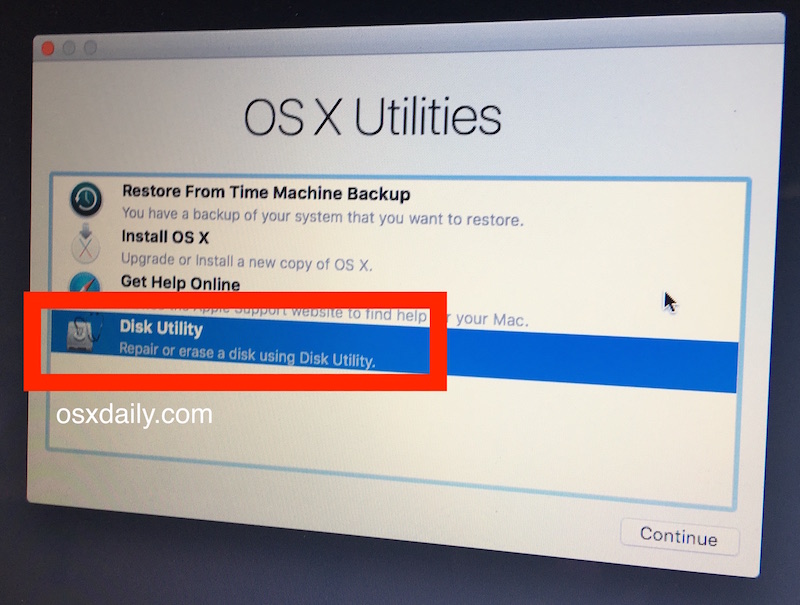
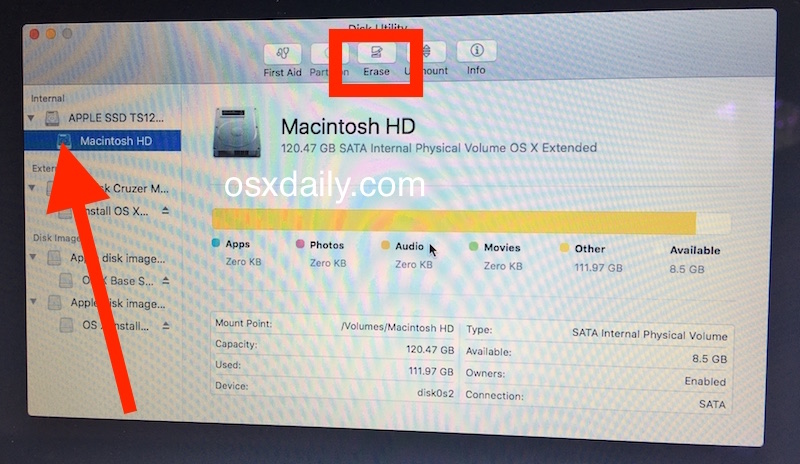
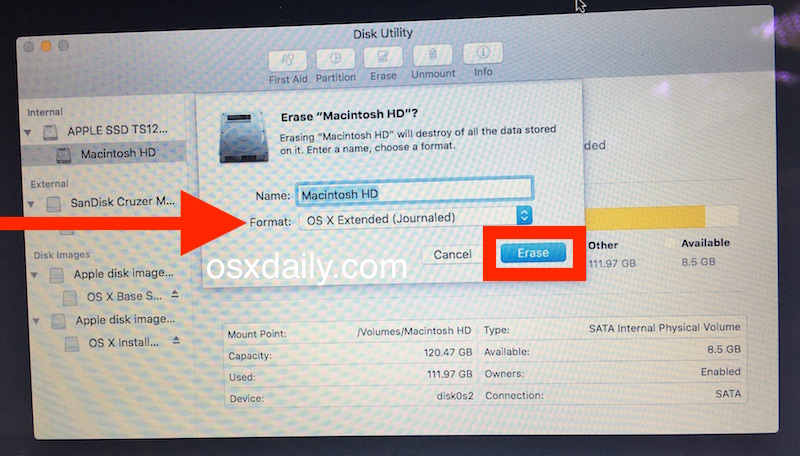
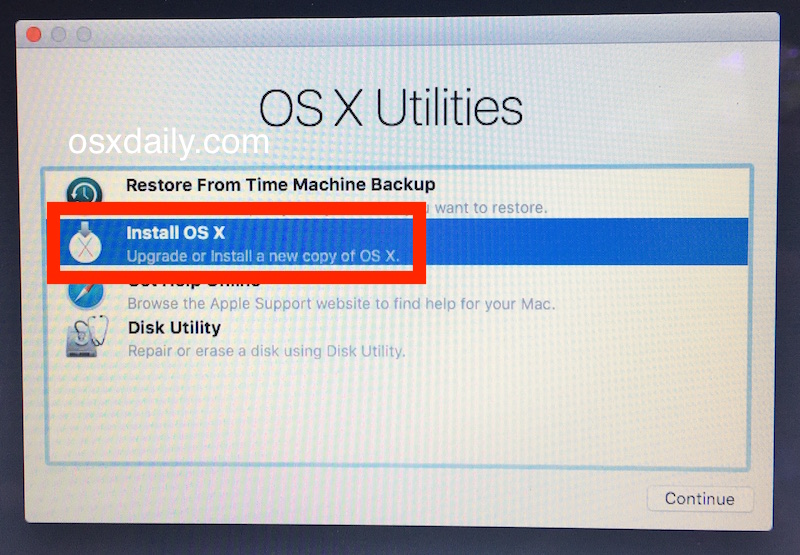
No personal data will remain on the Mac, no apps, no files, nothing, it is entirely wiped clean of all data and then a fresh factory version of Mac OS X system software has been installed.
This is not a reversible process, which is why it’s so important that any personal data you want saved was backed up first.
How to Reinstall MacOS with Internet Recovery

Reinstalling MacOS with Internet Recovery offers a way to reinstall the system software version of MacOS that came with the Mac. For example, if a Mac shipped with MacOS Mojave but is currently running MacOS Catalina, using Internet Recovery to reinstall MacOS on that machine will reinstall MacOS Mojave since that is the system software release that shipped with the Mac originally.
Note that using Internet Recovery on a Mac requires an available internet connection to download and install the necessary system components.
How to Reinstall MacOS Using Internet Recovery
- Turn on the Mac (or reboot the computer) and then immediately hold down the following key combinations to boot the Mac into Internet Recovery mode: Option-Command-R or Shift-Option-Command-R
- Continue holding that key combination until you see a spinning globe on the screen, this indicates Internet Recovery is loading and it may take a while
- When the “MacOS Utilities” screen loads, you can choose to install MacOS, open Disk Utility if you wish to erase and format the drive, or Time Machine to restore a backup, for our purposes here we’ll choose “Reinstall MacOS”
- Walk through the onscreen steps to reinstall a new copy of MacOS system software
- Installation will begin and the screen will go black with a loading progress bar, let this process complete and do not interrupt the installation or the internet connection
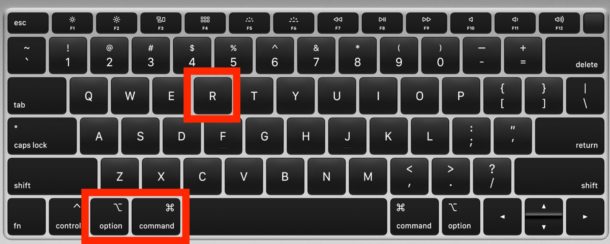

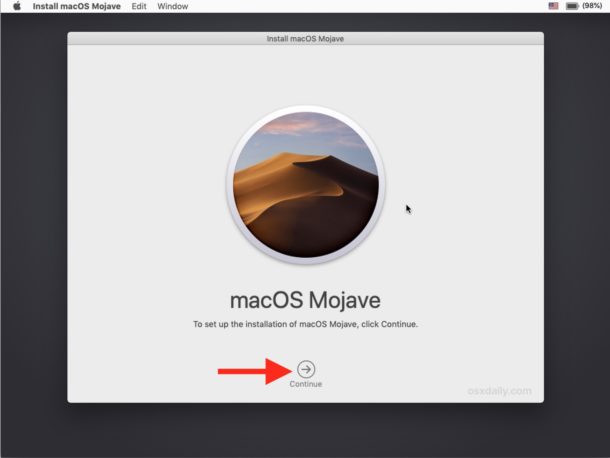

Typically Internet Recovery mode is used for troubleshooting purposes when another installation method of MacOS is not available, but you can also use Internet Recovery for erasing and resetting a Mac to factory settings if needed as well.
Inscription à :
Articles (Atom)