How to Reinstall MacOS with Internet Recovery

Reinstalling MacOS with Internet Recovery offers a way to reinstall the system software version of MacOS that came with the Mac. For example, if a Mac shipped with MacOS Mojave but is currently running MacOS Catalina, using Internet Recovery to reinstall MacOS on that machine will reinstall MacOS Mojave since that is the system software release that shipped with the Mac originally.
Note that using Internet Recovery on a Mac requires an available internet connection to download and install the necessary system components.
How to Reinstall MacOS Using Internet Recovery
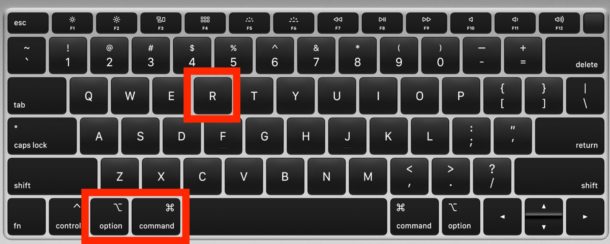
- Turn on the Mac (or reboot the computer) and then immediately hold down the following key combinations to boot the Mac into Internet Recovery mode: Option-Command-R or Shift-Option-Command-R
- Continue holding that key combination until you see a spinning globe on the screen, this indicates Internet Recovery is loading and it may take a while
- When the “MacOS Utilities” screen loads, you can choose to install MacOS, open Disk Utility if you wish to erase and format the drive, or Time Machine to restore a backup, for our purposes here we’ll choose “Reinstall MacOS”
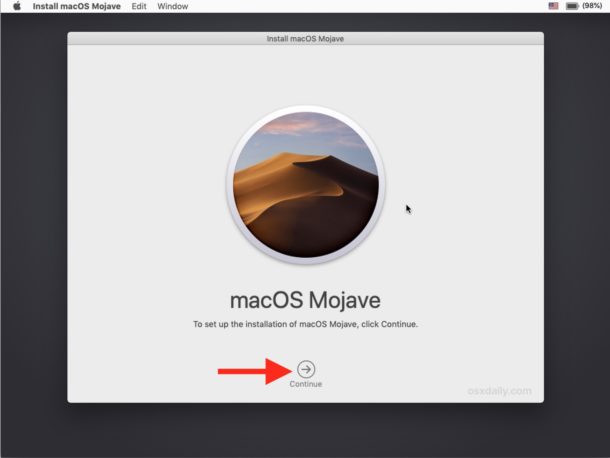
- Walk through the onscreen steps to reinstall a new copy of MacOS system software
- Installation will begin and the screen will go black with a loading progress bar, let this process complete and do not interrupt the installation or the internet connection


Typically Internet Recovery mode is used for troubleshooting purposes when another installation method of MacOS is not available, but you can also use Internet Recovery for erasing and resetting a Mac to factory settings if needed as well.
