samedi 23 novembre 2019

IM v6 Examples -- Repository Links


ImageMagick v6 Examples -- Repository Links


Index
ImageMagick Examples Preface and Index
IM Script Repositories

Sources of ImageMagick Scripts

There is NO official repository for scripts.
However, individuals create some repositories, of various stuff.
However what one person finds useful, others may need to modify for their own use.

So caution is recommended.

Ideally the scripts should be self-documenting and clearly written,
and the ones here are generally like that. This includes...

Some Examples Scripts installed in '/usr/share/docs/...' as part of the IM installation (or in the IM sources).

IM Examples, Shell Scripts Area
, for scripts detailed in or used by these example pages.

Ron Savages Perl 'Hax'.
Are raw tar file collections of very small IM scripts. It is very very old, but the concepts are still there.

Fred Weinhaus's ImageMagick Scripts
provides a large collection of complex shell scripts for filtering and distorting images in various ways.

RubbleWebs
which uses PHP scripts calling the ImageMagick Command Line API.

This was created by the regular IM Discussion Forum user 'Bonzo'.

RMagick Examples which includes the original script that was incorporated into IM as the Polaroid transform. Tom Watson's ImageMagick Scripts

provides TCSH scripts using IM. Mostly they are for handling of digital camera photos.
Created: 27 December 2007

Updated: 03 June 2016

Author: Anthony Thyssen,<
A.Thyssen_AT_griffith.edu.au>

Examples Generated with:

[version image] URL:
http://www.imagemagick.org/Usage/reference.html

samedi 16 novembre 2019

How to Reset Mac to Factory Settings

How to Reset Mac to Factory Settings

How to Factory Reset Mac to Original Settings
This guide walks through exactly how to reset and restore a Mac to original factory settings. Resetting a Mac to factory settings involves erasing the Mac hard drive and then reinstalling MacOS or Mac OS X system software onto the computer. The result is that all personal data will be removed from the computer completely and a fresh reset original version of Mac OS system software will be installed on the computer, just like the computer was new and how it originated from the factory again (thus why this is called a factory reset).

This reset and restore method is the same with every Mac computer out there, including iMac, MacBook Pro, MacBook, MacBook Air, Mac Mini, and Mac Pro, as long as the Mac is running a somewhat modern version of Mac OS system software with recovery mode support. You can also perform the exact same actions as described here from a boot USB disk if you have one.


Note the difference between a reset of the Mac and a simple reinstall of system software: a true factory reset of a Mac as we’ll show here, is that the computer is erased clean of any and all data entirely, and then a new factory installation of Mac OS X system software is installed on the computer. The initial erase and data removal process is how this primarily differs from simply reinstalling OS X system software on the Mac without formatting the Mac to begin with, which would maintain files and apps and user data, whereas the factory reset completely removes everything and starts fresh.
WARNING: This will completely erase everything on the Mac, no personal files will remain, no apps, nothing, the Mac will be completely formatted and wiped clear, and the only thing left will be the factory reset stock version of MacOS or Mac OS X system software, just as if the Mac was new.
Be sure you backup any and all personal files and data that you care about before starting this process, if you do not back up your personal data and files they will be permanently lost as this process erases the Mac and resets the computer to factory default settings. Do not skip backups of your stuff!

How to Factory Reset Mac OS X to Original Default Factory Settings

If you want to completely erase the Mac and get a factory reset Mac OS X version that is blank and back to default settings as if the computer was brand new, this is the process to achieve that. This will reset Mac to the factory default version of Mac OS X on the computer, everything else will be removed in the process.
  1. Reboot the Mac and right after the boot chime sound, hold down the COMMAND + R keys together to boot into Recovery Mode
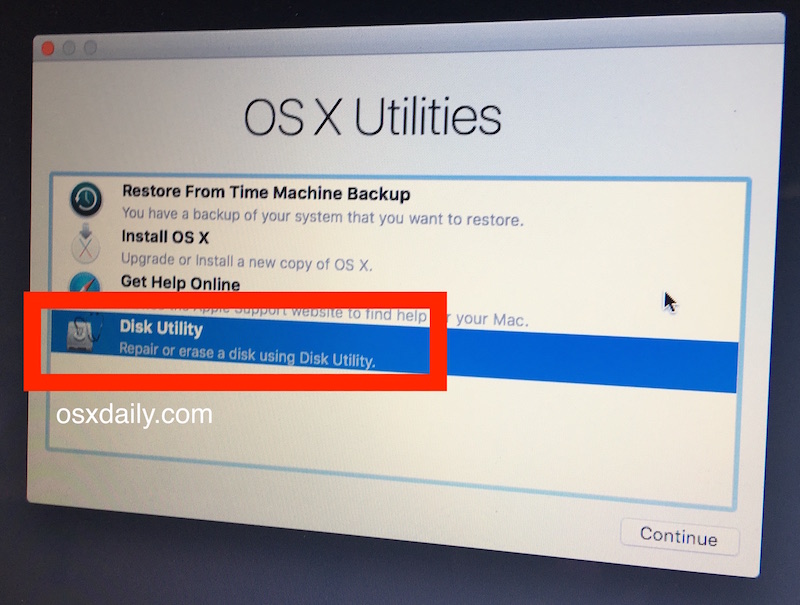
  2. Once in Recovery Mode and at the “macOS Utilities” (or “OS X Utilities”) screen, select “Disk Utility”
  3. 2- Select Disk Utility at the OS X Utilities screen
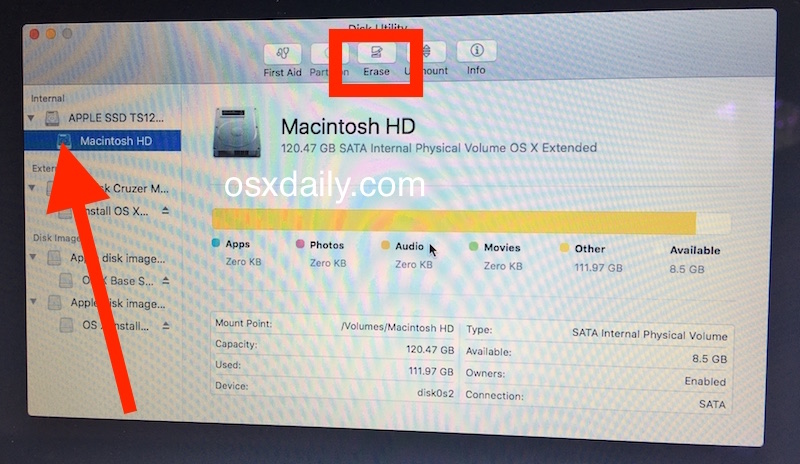
  4. Choose “Macintosh HD” (or what the Mac drive is named), then select the “Erase” button
  5. Select the Mac drive to erase
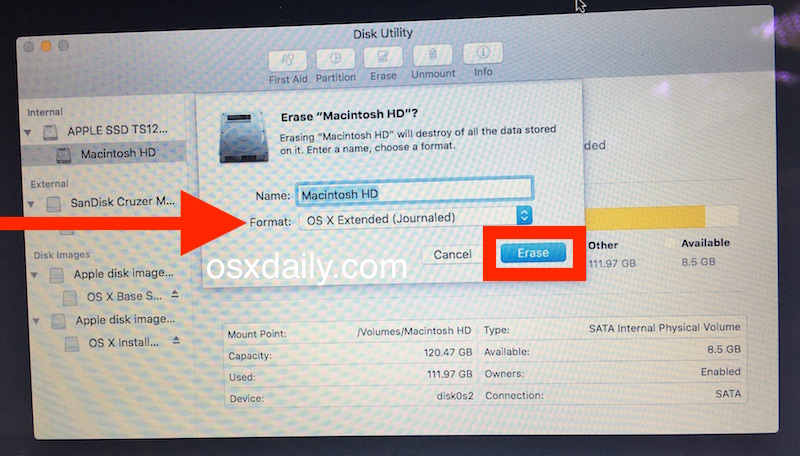
  6. Choose a name for the erased drive, like ‘Macintosh HD’ and then next to “Format” pull down the drop down menu to select “OS X Extended (Journaled)”, then click on “Erase” when you are ready to completely wipe the Mac – ERASING MEANS EVERYTHING WILL BE REMOVED
  7. Erase the Mac hard drive completely, this deletes everything and resets it so that you can install blank OS X
  8. Once the drive has finished erasing everything, quit out of Disk Utility to return to the primary “Mac OS Utilities” screen that we started on
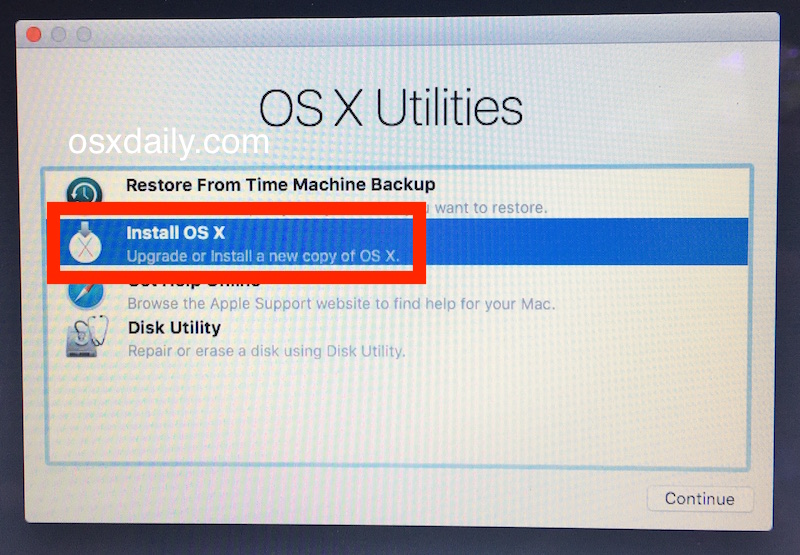
  9. Next comes the fresh factory installation of Mac OS X, so choose “Install Mac OS” from the menu and click Continue
  10. Choose to Install a fresh factory clean version of Mac OS X from the OS X Utilities menu
  11. Choose “Macintosh HD” (or the target Mac drive name from step 4) from the list and click on “Install” to begin installing a fresh factory version of Mac system software
That’s all there is to it, the Mac will finish installing Mac OS X onto the computer and when finished it will reboot automatically into the fresh factory reset version of everything. If you are giving the computer away or selling it or otherwise transferring ownership, you’ll likely not want to fill out any of the setup details and instead when the Mac has completed the factory reset you’ll want to just shut it down and let the new owner take over. On the other hand if you are setting it up yourself, go ahead and go through the initial setup process, it will be just like it was when the Mac was brand new, requiring setup of the user account and system software, setting up as a clean slate of factory default settings.
No personal data will remain on the Mac, no apps, no files, nothing, it is entirely wiped clean of all data and then a fresh factory version of Mac OS X system software has been installed.
This is not a reversible process, which is why it’s so important that any personal data you want saved was backed up first.

How to Reinstall MacOS with Internet Recovery

How to reinstall MacOS with Internet Recovery
Reinstalling MacOS with Internet Recovery offers a way to reinstall the system software version of MacOS that came with the Mac. For example, if a Mac shipped with MacOS Mojave but is currently running MacOS Catalina, using Internet Recovery to reinstall MacOS on that machine will reinstall MacOS Mojave since that is the system software release that shipped with the Mac originally.
Using Internet Recovery for reinstalling macOS also has the added benefit of allowing you to erase the target hard drive before installing MacOS to it as well, providing for a clean install of MacOS system software, without having to rely on a external USB boot installer drive. Plus, Internet Recovery is available to use on a Mac even if the regular Recovery Partition is not accessible.
Note that using Internet Recovery on a Mac requires an available internet connection to download and install the necessary system components.

How to Reinstall MacOS Using Internet Recovery

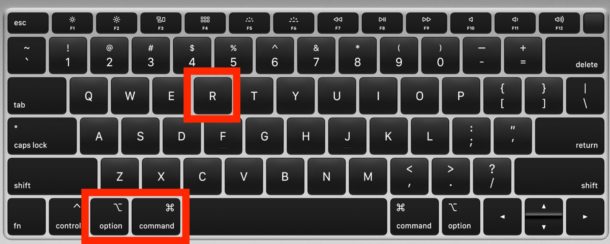
  1. Turn on the Mac (or reboot the computer) and then immediately hold down the following key combinations to boot the Mac into Internet Recovery mode: Option-Command-R or Shift-Option-Command-R
  2. How to boot into MacOS Internet Recovery mode
  3. Continue holding that key combination until you see a spinning globe on the screen, this indicates Internet Recovery is loading and it may take a while
  4. When the “MacOS Utilities” screen loads, you can choose to install MacOS, open Disk Utility if you wish to erase and format the drive, or Time Machine to restore a backup, for our purposes here we’ll choose “Reinstall MacOS”
  5. How to reinstall macOS with Internet Recovery
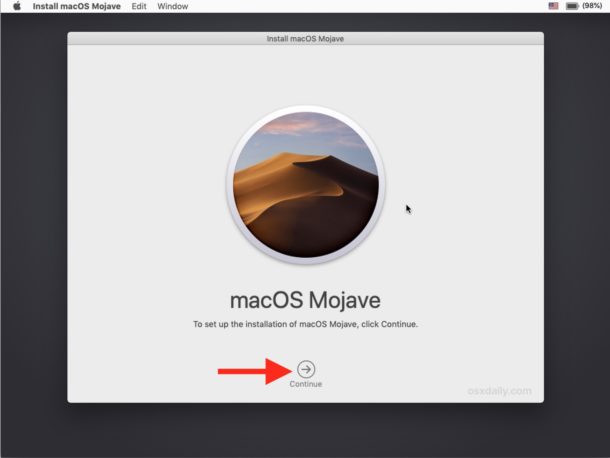
  6. Walk through the onscreen steps to reinstall a new copy of MacOS system software
  7. Reinstalling MacOS screen
  8. Installation will begin and the screen will go black with a loading progress bar, let this process complete and do not interrupt the installation or the internet connection
  9. Reinstalling macOS progress bar
When finished reinstalling, MacOS will reboot as usual into a new system setup.
Typically Internet Recovery mode is used for troubleshooting purposes when another installation method of MacOS is not available, but you can also use Internet Recovery for erasing and resetting a Mac to factory settings if needed as well.
This article details the process of reinstalling macOS with Internet Recovery, but if you’re using an older Mac or had a Mac with older system software you will find the capabilities are still there on most older machines and the instructions will be familiar to you as well. You can learn more about reinstalling older Mac OS X versions with Internet Recovery here.

mercredi 25 septembre 2019

ASRock z87 Extreme4 - i5-4760K Step by step guide help


ASRock z87 Extreme4 - i5-4760K Step by step guide help


ASRock z87 Extreme4 - i5-4670K Step by step guide help

Could really use some help with this install.

I can install Mavericks, but it will not load without -v -f -x PCIRootUID=1 GraphicsEnabler=No

I used pmpatch and still get this screen.jpg

Also, can anyone provide the best multibeast settings for this MB?

Thanks!


Joined
Jan 18, 2014
Messages
17
Motherboard
ASRock Z87 Extreme4 2.70 Bios
CPU
i5-4670K
Graphics
HD4600
Mac
Classic Mac
Mobile Phone


Can anyone point me in the right direction? Really appreciate it.


Joined
Feb 3, 2011
Messages
1,403
Motherboard
Gigabyte Z390 AORUS Ultra
CPU
i9-9900K
Graphics
RX 590


Attachments


Joined
Jan 18, 2014
Messages
17
Motherboard
ASRock Z87 Extreme4 2.70 Bios
CPU
i5-4670K
Graphics
HD4600
Mac
Classic Mac
Mobile Phone


that's huge! Thanks!


Joined
Jan 18, 2014
Messages
17
Motherboard
ASRock Z87 Extreme4 2.70 Bios
CPU
i5-4670K
Graphics
HD4600
Mac
Classic Mac
Mobile Phone


Ok, now I get black screen and it won't go any further.

was able to boot with -v -x GraphicsEnabler=No IGPlatformID=01660003

here is is a screenshot:

Attachments


Joined
May 11, 2011
Messages
588
Motherboard
Asrock B365M Phantom Gaming
CPU
i5-8400
Graphics
UHD 630 + RX 580
Mobile Phone
iOS


Are you using the HD4600 graphics?
Try npci=0x3000 or npci=0x2000 or -v -x -f or -F
Or IGPEnabler=Yes IGPlatformID=01660003 -v
Or this one works for everyone with hd4000 or 4600 --> GraphicsEnabler=Yes PCIRootUID=0 -v
Or you can include darkwake=0 see if works


Joined
Jan 18, 2014
Messages
17
Motherboard
ASRock Z87 Extreme4 2.70 Bios
CPU
i5-4670K
Graphics
HD4600
Mac
Classic Mac
Mobile Phone


ASRock Z87 Extreme4 bios 2.70- i5-4670K

What is interesting is the the ASRock website no longer shows the MacOSX compatible bios as shown above... http://www.asrock.com/mb/Intel/Z87 Extreme4/?cat=Download&os=BIOS

Yes using the 4600 graphics. Monitor plugged into DVI and just updated to the latest ASRock bios that supposedly supports Mac OSX. Have 8GB of ram and a samsung SSD.

This goes to black screen: Try npci=0x3000 or npci=0x2000 or -v -x -f or -F
This freezes
IGPEnabler=Yes IGPlatformID=01660003 -v (take a look at the screen shot below)
126132091_crop_650x440.jpg

This goes to black screen: GraphicsEnabler=Yes PCIRootUID=0 -v
darkwake=0 didn't change anything...

Here is the way the bios is setup:
photo-2.jpgphoto-3.jpgphoto-4.jpgphoto-5.jpgphoto-6.jpgphoto-7.jpgphoto-8.jpgphoto-9.jpg


Any help is most appreciated!!!!!!!


Attachments


Joined
Feb 3, 2011
Messages
1,403
Motherboard
Gigabyte Z390 AORUS Ultra
CPU
i9-9900K
Graphics
RX 590


it does show on asrock site msr unlocked 2.70 i dl and ran pmpach to to test it is unlocked as they say. i do see 2 mistakes in your bios oc tweaker shared memory should be 32mb also your ssd is on sata port3 needs to be on sata port0 for osx use flag -x only for now.


Joined
May 11, 2011
Messages
588
Motherboard
Asrock B365M Phantom Gaming
CPU
i5-8400
Graphics
UHD 630 + RX 580
Mobile Phone
iOS


Share memory needs to be 64MB.
Also with GraphicsEnabler=Yes PCIRootUID=0 -v ----- if you got a black screen means it boots into mac ---try a hdmi port,plug a cable there when u see the black screen.
Also try GraphicsEnabler=Yes PCIRootUID=1(or 2,3,4) -v


matty bad advice asrock has a well known issue with gfx not working with 64mb use 32mb


Joined
Jan 18, 2014
Messages
17
Motherboard
ASRock Z87 Extreme4 2.70 Bios
CPU
i5-4670K
Graphics
HD4600
Mac
Classic Mac
Mobile Phone


ALRIGHT!!!! WooohoooO!

Typing this from OS X!!!

DVI would black screen. VGA would give the following screen shot and freeze. HDMI worked!

Screen Shot 2014-01-29 at 8.03.40 AM.jpg

Screen-Shot-2014-01-29-at-8.16.15-AM.jpg


Audio works - now need to test Sleep. Also USB3 ports do load the usb stick, but how do I know if it is USB3.0 speed?

Attachments


Joined
Jan 18, 2014
Messages
17
Motherboard
ASRock Z87 Extreme4 2.70 Bios
CPU
i5-4670K
Graphics
HD4600
Mac
Classic Mac
Mobile Phone


Alright sleep and USB 3 do not work...

Using the search for some help, but stehor and mattystonnie you guys sure know your stuff and have unbelievably helpful!!!

Would have given up if it wasn't for you all. Thanks again.


Joined
Jan 18, 2014
Messages
17
Motherboard
ASRock Z87 Extreme4 2.70 Bios
CPU
i5-4670K
Graphics
HD4600
Mac
Classic Mac
Mobile Phone


i know u dont have a z77 pro3 but bios settings r the same for the z87 look at my guide maybe u missed a setting http://www.tonymacx86.com/mountain-lion-desktop-guides/96604-guide-asrock-z77-pro3-bios-1-90-patched-2.html#post590710

Double checked all bios settings and they all match-up...

When the computer goes to sleep, only the monitor goes dark, the computer and fans stay running.

I am not able to get the monitor back on by moving the keyboard or the mouse. (unfortunately have to hold the power button and restart...)

Thanks again for all your continued help.


Joined
Jan 18, 2014
Messages
17
Motherboard
ASRock Z87 Extreme4 2.70 Bios
CPU
i5-4670K
Graphics
HD4600
Mac
Classic Mac
Mobile Phone


If you got an i5 processor select system definition iMac 14.1 from multi beast (14.2 is for i7)
Go to multi beast ->drivers and select USB 3.0 -Universal install and reboot.
Thanks, will try this. When running Multibeast, do I have to re-select all of the prior options, and only change 14.2 to 14.1 or can I just select 14.2 to 14.1 without messing with the other selections.

Hope this makes sense. Just want to do it right the first time.

Thanks!


Joined
May 11, 2011
Messages
588
Motherboard
Asrock B365M Phantom Gaming
CPU
i5-8400
Graphics
UHD 630 + RX 580
Mobile Phone
iOS


Speed steeps are working better with 14.1 ;)
Also from what you shown me there system definition 14.3 is also good.


Stehor-----> use system definition mac pro 3.1 for your system and you will have more speed steeps for your cpu.
You got the same specs like me,i build hackintosh for over 5-6 years and i know what i am doing.


Joined
Feb 3, 2011
Messages
1,403
Motherboard
Gigabyte Z390 AORUS Ultra
CPU
i9-9900K
Graphics
RX 590


i didnt say u dont know what u r doing but giving bad advise on smbios can brick peoples builds. MacPro3,1 apps r slow or dont work properly this could be solved if there was a haswell MacMini on the p states issue like in ml. also intel gfx r supported 32,64,96mb in shared memory. the 64 memory issue maybe fixed in asrock z87 mobos havent bought 1 to test.


Joined
May 11, 2011
Messages
588
Motherboard
Asrock B365M Phantom Gaming
CPU
i5-8400
Graphics
UHD 630 + RX 580
Mobile Phone
iOS


I was talking about you to use mac pro 3.1,in the past i was using IMac 12.1 or 12.2 but i had 2 speed steeps,with mac pro 3.1 system definition i got more speed steeps and everything works same speed,i tried mac mini 5.2 or 5.1 but the usb 3 doesn't work also my cpu is locked at 34.
I got the same system specs like you.
With Chimera i can use even 32,64 or 1024mb for video in the bios,but with chameleon i can only stick with 32,64,96mb.


Joined
Jan 18, 2014
Messages
17
Motherboard
ASRock Z87 Extreme4 2.70 Bios
CPU
i5-4670K
Graphics
HD4600
Mac
Classic Mac
Mobile Phone


With 14.1 the computer goes to sleep (fans turn off) and I can wake it up as well with the keyboard, but the monitor stays black...forcing me to restart by holding down the power button.

This is with the HD4600 hooked up through HDMI.


My hope is that installing an EVGA GTX 760 may help (but of course I have run into more problems)

I changed the bios to PCI and disabled onboard video, but now OS X hangs "missing bluetooth controller".

I have tried GraphicsEnabler=No and GraphicsEnabler=Yes with no luck. I can safe boot with -x though.

I am sure I am wearing you guys out, but I really do appreciate it and hope that others are getting something out of this thread. Thanks again!


Joined
May 11, 2011
Messages
588
Motherboard
Asrock B365M Phantom Gaming
CPU
i5-8400
Graphics
UHD 630 + RX 580
Mobile Phone
iOS


If you disabled the onboard video you need 2 boot with this: -v IGPEnabler=No GraphicsEnabler=Yes PCIRootUID=1 (because on board video is PCIRootUID=0)
If you want 2 enable both of them -v IGPEnabler=Yes GraphicsEnabler=Yes


Joined
Jan 18, 2014
Messages
17
Motherboard
ASRock Z87 Extreme4 2.70 Bios
CPU
i5-4670K
Graphics
HD4600
Mac
Classic Mac
Mobile Phone


If you disabled the onboard video you need 2 boot with this: -v IGPEnabler=No GraphicsEnabler=Yes PCIRootUID=1 (because on board video is PCIRootUID=0)
If you want 2 enable both of them -v IGPEnabler=Yes GraphicsEnabler=Yes

Tried all of the boot flags above, but still unsuccessful. Changed back to 'onboard' and have no trouble loading into Mavericks. Thoughts?

Screenshots:
photo 1.JPGphoto 2.JPG


Joined
Jan 18, 2014
Messages
17
Motherboard
ASRock Z87 Extreme4 2.70 Bios
CPU
i5-4670K
Graphics
HD4600
Mac
Classic Mac
Mobile Phone


OK! Changed some settings in the bios.

Selected: PCI Express
(Going back to see what else I changed - will post today)

Using DVI since HDMI did not work.

Screen Shot 2014-02-05 at 9.16.23 AM.jpg


Joined
Jan 18, 2014
Messages
17
Motherboard
ASRock Z87 Extreme4 2.70 Bios
CPU
i5-4670K
Graphics
HD4600
Mac
Classic Mac
Mobile Phone


Geekbench and Cinebench results.

How can I tell if FCPX is using GPU acceleration?

Screen Shot 2014-02-05 at 9.59.09 AM.pngScreen Shot 2014-02-05 at 10.10.26 AM.png


Joined
Mar 5, 2014
Messages
6
CPU
4670k
Graphics
EVGA gtx980
Mac
MacBook Pro
Mobile Phone
iOS


Hello;

which guide did you ise while building that hackintosh? I have the same mb and i am stuck :(


Joined
Jul 18, 2012
Messages
16
Motherboard
Mavericks 10.9.1
CPU
ASRock Fatal1ty Z87 Professional
Graphics
ASUS - GTX 680 2gb
Mac
Classic Mac
Mobile Phone
Android


I've fixed bluetooth error before by simply deleting all graphics drivers my system wasn't actually using an it fixed it, just make sure yo get them all.

The following guide is a complete walkthrough to installing or updating to the latest version of OS X. It requires no experience and all of the necessary installation and post-installation tools are available on tonymacx86.com.

UniBeast is a tool that creates a bootable installer out of your downloaded version of OS X. In order to start fresh, you'll need access to a functional computer running Mac OS X Snow Leopard 10.6.8 or later. This is a requirement, as you need access to the Mac App Store to download OS X and create the installation drive. To start from scratch, booting the 10.6 Snow Leopard Retail DVD directly, check out iBoot + MultiBeast.


UniBeast Overview

1. Download the OS X Mavericks Application from the Mac App Store
2. Prepare a UniBeast USB flash drive
3. Install OS X Mavericks
4. Install the bootloader and drivers using MultiBeast


Before You Begin

1. Register here at tonymacx86.com. If you don't have a user account, create one!
2. Get our latest MultiBeast and UniBeast tools from the downloads section.
3. Purchase a 8GB or larger USB drive.

buyOSX.png
STEP 1: Download OS X Mavericks

The full operating system is a free download for anyone who has purchased Mac OS X Snow Leopard, Lion, or Mountain Lion. Download the Application from the Mac App Store using your Apple ID on any Mac or functional computer running Mac OS X 10.6.8 or later.

1. Open Mac App Store
2. Log in with your Apple ID
3. Download OS X Mavericks

The Application Install OS X Mavericks will appear in /Applications.
ub2.0.png
STEP 2: Create a Bootable USB Drive with UniBeast

Take a deep breath and take your time- this is pretty simple, but it's easy to miss things if you rush. Follow each step to the letter.

1. Insert the USB drive
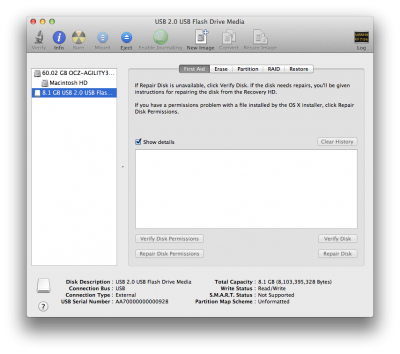
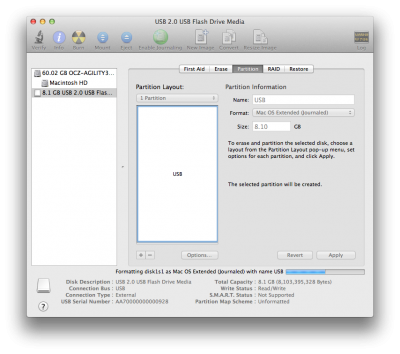
2. Open /Applications/Utilities/Disk Utility
3. Highlight the USB drive in left column
Screen Shot 2013-10-11 at 8.27.02 PM.png
4. Click on the Partition tab
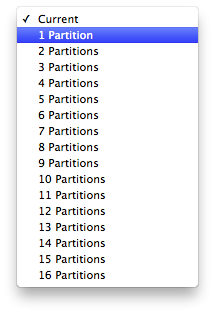
5. Click Current and choose 1 Partition
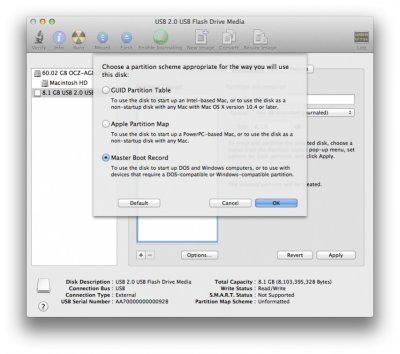
6. Click Options...
7. Choose Master Boot Record
Screen Shot 2013-10-11 at 8.27.38 PM.jpg
8. Under Name: type USB (You can rename it later)
9. Under Format: choose Mac OS Extended (Journaled)
10. Click Apply then Partition
Screen Shot 2013-10-11 at 8.28.01 PM.png
11. Download and run UniBeast
12. Click Continue, Continue, Continue, Agree
Screen Shot 2013-10-11 at 8.33.06 PM.png
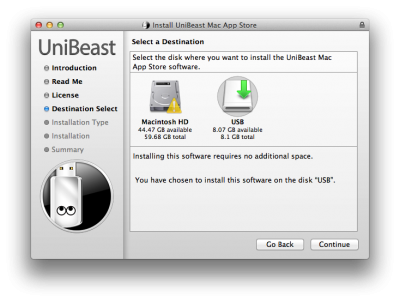
13. At Destination Select, choose USB and click Continue
Screen Shot 2013-10-11 at 8.33.12 PM.png
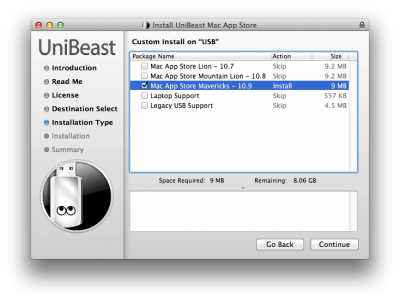
14. If using a Socket 1156 system without Rate Matching Hub (RMH) USB choose Legacy USB Support
15. If using a laptop, choose Laptop Support
16. Click Continue
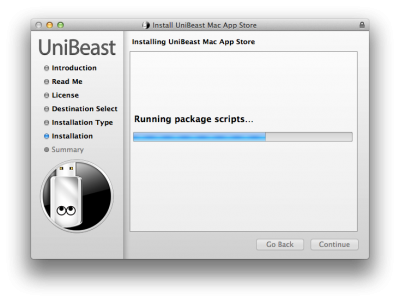
17. Enter password and click Install
Screen Shot 2013-10-11 at 8.33.27 PM.png
UniBeast will now create the bootable USB drive. The process will only take about 10-15 minutes, depending on system and drive speed, but will show hours. This is normal. Do not unplug or stop during this time.

18. Drag MultiBeast to your completed USB drive.
3d-mode-1.jpg
STEP 3: Recommended UEFI Settings

If you're installing on a recommended CustoMac desktop with AMI UEFI, the options are simple. For other systems make sure to set your BIOS or UEFI to Optimized Defaults, and your hard drive to AHCI mode. Award BIOS settings are listed here.

1. To access BIOS/UEFI Setup, press and hold Delete on a USB Keyboard while the system is booting up
2. Set to Optimized Defaults.
3. (Optional) Set X.M.P. Memory Profile to Profile1
4. If your CPU supports VT-d, disable it
5. Save and exit.

For best results with the latest 8-series motherboards and Haswell CPUs, remove all but 1 stick of RAM for the installation process. You can put back extra RAM sticks after post-installation is finished.
installMavs.png
STEP 4: Install OS X Mavericks

You're almost done! All you need to do is boot from the USB drive and install!

1. Turn on the computer
2. Press the hotkey to choose boot device
  • If you have a Gigabyte motherboard press F12
  • If you have a ASUS motherboard, press F8
3. Choose USB-HDD
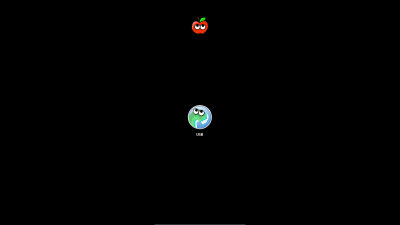
4. At the Chimera Boot Screen, choose USB and hit Enter
usb.png
If you have trouble reaching the installer, type -x at the Boot screen as shown below. You can type the boot flags GraphicsEnabler=Yes, maxmem=4096, PCIRootUID=1, PCIRootUID=0, and npci=0x2000 by themselves or together in order to solve boot issues for older graphics cards and machines. Type -v to bypass the Apple boot screen and enter verbose startup mode. For further explanations of boot flags, check out the post here. Also, if you need help with what to use for your graphics card, see the post here.

boot-x.png

5. When you arrive at the Installer, choose language.

install_welcome.png

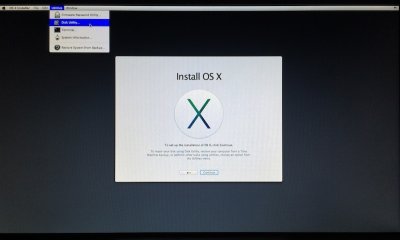
6. For a new installation of OS X, you MUST erase and format the destination drive according to the following steps before continuing. If you are upgrading from Snow Leopard, Lion, or Mountain Lion and you want to keep your files and apps, skip steps a-j.
a. In the top menu bar choose Utilities, and open Disk Utility
IMG_0838.jpg
b. Highlight your target hard drive for the Mavericks installation in left column.
c. Click Partition tab
d. Click Current and choose 1 Partition
e. Click Options...
f. Choose GUID Partition Method
g. Under Name: type Mavericks (You can rename it later)
h. Under Format: choose Mac OS Extended (Journaled)
i. Click Apply then Partition
j. Close Disk Utility

7. When the installer asks you where to install, choose Mavericks, or your existing install.
8. Upon completion, restart the system.

configure.png
STEP 5: Post-Installation Using MultiBeast

MultiBeast is an all-in-one post-installation tool designed to enable boot from hard drive, and install support for Audio, Network, and Graphics. In addition it includes System Utilities to repair permissions and a collection of drivers and config files. The installation is complete, but the drive isn't bootable yet. Boot from the USB again, this time choosing Mavericks.

1. Turn on the computer
2. Press the hotkey to choose boot device
  • If you have a Gigabyte motherboard press F12
  • If you have a ASUS motherboard, press F8
3. Choose USB-HDD
4. At the Chimera Boot Screen, choose your new Mavericks installation.
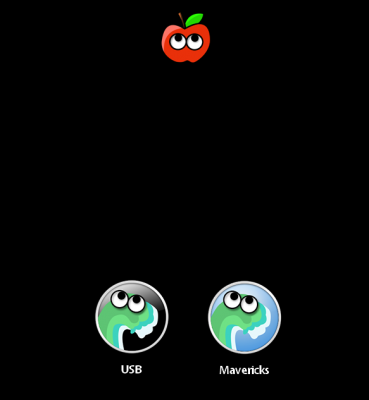
usb+mavs.png
5. Complete Mac OS X Mavericks setup
6. Open and run MultibeastMB1.png7. Click Quick Start to choose EasyBeast, UserDSDT, or DSDT-Free
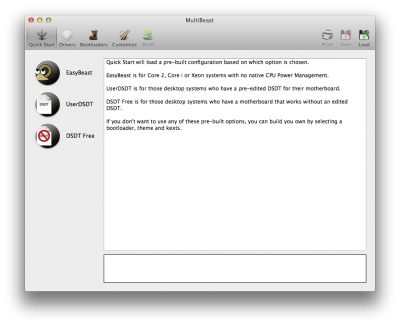
mb2.png
8. Click Drivers for Audio, Graphics, and Network options
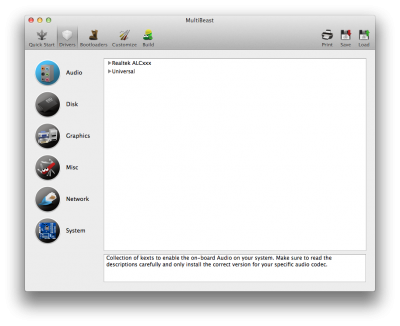
mb2a.png
9. Click Customize for further options
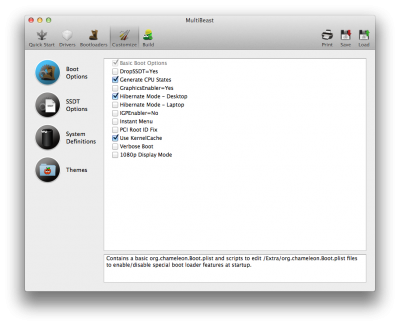
mb2b.png
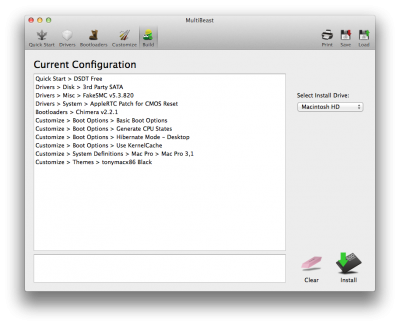
10. Click Print or Save to back up your configuration
11. Click Build then Install
mb3.png
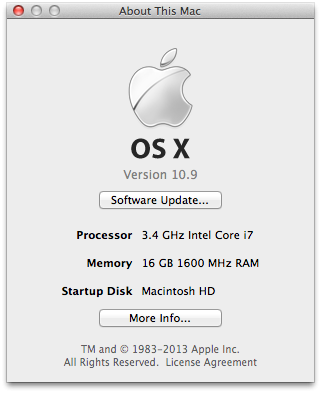
12. Restart computer to complete installation
109.png
Yay! You now have a fully updated bootable version of OS X Mavericks on your CustoMac! And a super handy USB rescue drive. It's easy to get frustrated, but don't give up! If you get stuck, there are many users with similar hardware in the tonymacx86 Forum to provide support. Special thanks to everyone in the community, and our moderators for testing!
mavs mb.jpg

If you've had success using this guide, consider a contribution to help keep the sites going. We're constantly updating and tweaking our tools to help you. Good luck and have fun!

Related:
UniBeast 10.8 Mountain Lion Guide
UniBeast 10.7 Lion Guide
iBoot + MultiBeast - 10.6 Snow Leopard Guide
Simplest OS X Installation Guide
Quick guide to configuring the UEFI on Gigabyte's 7-series LGA-1155 motherboards

Troubleshooting and Optimizations:
boot0 Error: The Official Guide
How to Fix iMessage
Mavericks: Native CPU/IGPU Power Management
Issuing Boot Flags
How To Know What to Install With MultiBeast
Install Bootloader and Extra to EFI Partition
Chimera HD Graphics Bootflags: IGPEnabler, IGPlatformID, and IGPDeviceID
The Basics
HDMI Audio
tonymacx86 Search
tonymacx86 Wiki